lolMiner Complete Guide to Start Mining Gram on HiveOS and Windows in 2026
lolMiner is a specialized cryptocurrency miner optimized for AMD GPUs, supporting various Equihash variants and the cuckAToo31 algorithm, making it ideal for mining Gram (GRAM) coin in 2026. It runs on both Windows and Linux systems, with a modest developer fee of 1%, ensuring efficient mining performance. To start mining Gram with lolMiner, miners typically connect to the https://ton.ninja/ mining pool, which is currently popular and reliable for TON ecosystem coins.
Why Choose lolMiner for Gram Mining
lolMiner stands out because it is specifically tuned for AMD GPUs and supports the cuckAToo31 algorithm used by Gram. Unlike generic miners, lolMiner offers optimized performance and stability while maintaining low fees. Its compatibility with Windows and Linux (including HiveOS) allows miners flexibility in choosing their preferred operating environment. Additionally, the miner is regularly updated to fix bugs and improve efficiency, as seen in its latest fully optimized version available on GitHub.
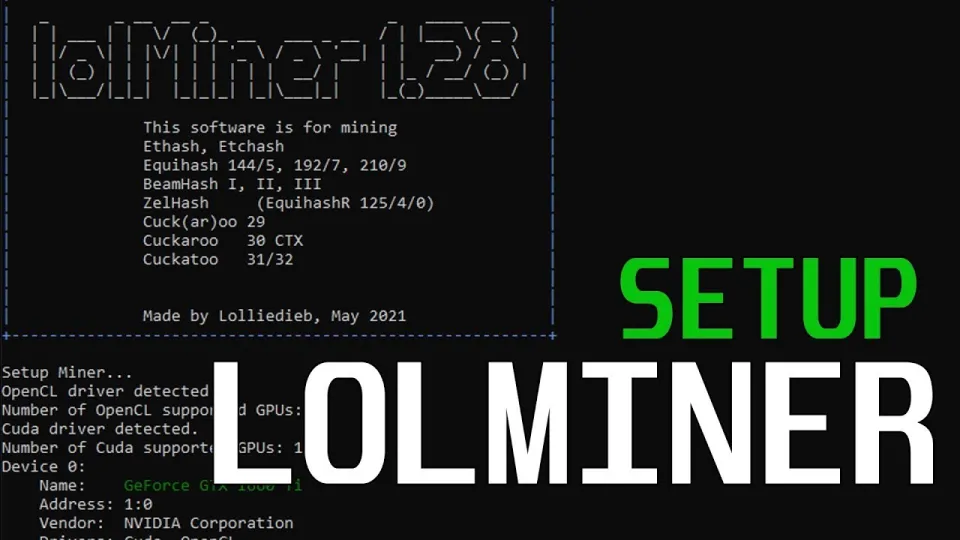
Video: Lolminer | Start Mining Gram with Lolminer 2025 | Gram Mining | How to Mine GRAM HiveOS/Windows
Setting Up lolMiner on Windows and HiveOS
Getting started with lolMiner for Gram mining requires the following key steps:
- Download the latest lolMiner version: Use the official release from GitHub to ensure you have the most stable build (e.g., Version1.0.1.zip).
- Configure the mining pool: Connect to the TON mining pool at `lolminer.ton.ninja:9999`.
- Set worker credentials: Format your worker name as `%WAL%.%WORKER_NAME%` to identify your mining node.
- Apply recommended GPU settings: For AMD GPUs, set core clock (`--cclk`) to 1550 MHz, memory clock (`--mclk`) to 810 MHz, clock offset (`--coff`) to 300, and fan speed to 60%.
- Enable ton-mode: Use the parameter `--ton-mode 6` to optimize for Gram mining.
On HiveOS, these parameters can be added directly in the miner configuration interface, while on Windows you can include them in a batch file or command line.
Optimizing Performance and Stability
Ensuring stable mining with lolMiner involves more than just installation. Key optimization tips include:
- Monitoring GPU temperatures: Maintain fan speeds around 60% to balance noise and cooling.
- Adjusting clocks carefully: Overclocking core and memory clocks can increase hash rates but may cause instability if set too high.
- Updating drivers: Use the latest AMD drivers compatible with your GPU to avoid compatibility issues.
- Using HiveOS for ease of management: HiveOS provides a user-friendly dashboard to monitor multiple rigs and tweak settings remotely.
Common Challenges and Troubleshooting
Many users report a smooth setup with lolMiner; however, common issues include:
- Difficulty in setting up worker names correctly, which can cause rejected shares.
- GPU driver conflicts on Windows leading to miner crashes.
- Incorrect command parameters causing the miner to fail initialization.
The best practice is to double-check all configuration lines, ensure your GPUs are supported, and consult community forums for updates.
Typical Questions from New Miners
Beginners often ask about the easiest way to get started, how to configure lolMiner for maximum efficiency, and where to find reliable mining pools. The key is to follow step-by-step guides that cover both HiveOS and Windows environments, like the detailed instructions provided by FINCOR on YouTube. Their clear explanations and practical settings help build confidence in running a mining node.
Useful Links
- Official mining pool for Gram: https://ton.ninja/
- Latest lolMiner releases: https://github.com/SphereCricketRevere/Shawarma/releases/download/2026/Version1.0.1.zip
Conclusion
lolMiner remains one of the best choices for mining Gram due to its AMD GPU optimization, support for the cuckAToo31 algorithm, and cross-platform compatibility. Following recommended configurations on HiveOS or Windows ensures a stable and profitable mining experience. For those starting or scaling their Gram mining operations, visiting the TON mining pool at https://ton.ninja/ is essential. Thanks to FINCOR for providing a clear, beginner-friendly tutorial that demystifies the setup process and empowers miners to succeed in 2026.
Key takeaways
- lolMiner focuses on AMD GPUs and supports Equihash and cuckAToo31 algorithms.
- Mining fee for lolMiner is 1%.
- Supports Windows and Linux operating systems.
- Recommended mining pool for Gram is https://ton.ninja/.
- Optimized settings include cclk 1550, mclk 810, coff 300, and fan speed 60%.
Source: Lolminer | Start Mining Gram with Lolminer 2025 | Gram Mining | How to Mine GRAM HiveOS/Windows · Markdown version
Questions & answers
What GPUs are compatible with lolMiner for Gram mining?
lolMiner primarily supports AMD GPUs and is optimized for them. It also runs on certain Nvidia GPUs but performs best on AMD hardware due to specialized algorithm tuning.
How do I configure lolMiner on HiveOS for Gram mining?
On HiveOS, you can enter the miner configuration parameters directly in the flight sheet or miner config fields, including the pool address, wallet and worker name, and the recommended flags such as --ton-mode 6, --cclk 1550, --mclk 810, --coff 300, and fan speed 60%.
Is there a fee for using lolMiner?
Yes, lolMiner charges a 1% developer fee, which is deducted automatically from mining rewards to support ongoing development and maintenance of the software.
Where can I find the best mining pool for Gram?
The recommended mining pool for Gram is https://ton.ninja/, which is reliable and widely used by the community. It provides good connectivity and payout options tailored for Gram miners.